# How to Set Email

**Step 1:** Click **\[Main Account]** button in the upper right corner and select **\[User Center].**

<figure><img src="https://766933878-files.gitbook.io/~/files/v0/b/gitbook-x-prod.appspot.com/o/spaces%2FifJoX8SL0anL5Gj0WFNP%2Fuploads%2Fu1rMQEywPlDuLiJ4Lyzv%2FSetting%20email%20notification_step%201.png?alt=media&#x26;token=84c26b52-ca03-4900-9f22-2674d71b8f84" alt="" width="226"><figcaption></figcaption></figure>

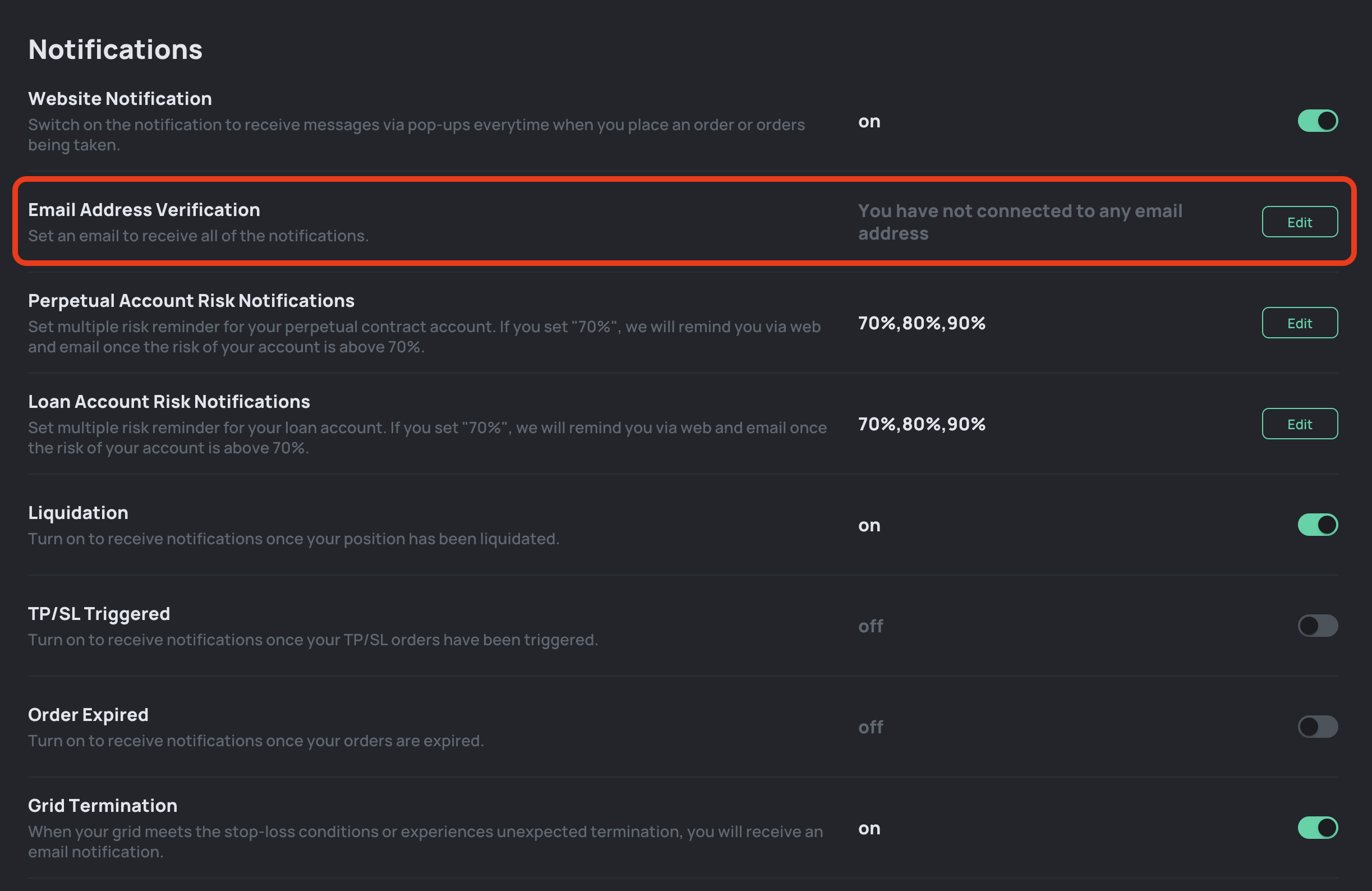
**Step 2:** Click **\[Edit]** and enter your email address to get verified.

<figure><img src="https://766933878-files.gitbook.io/~/files/v0/b/gitbook-x-prod.appspot.com/o/spaces%2FifJoX8SL0anL5Gj0WFNP%2Fuploads%2FT83LCKHWxkaCVeDzlYwS%2FSetting%20email%20notification_step%202.png?alt=media&#x26;token=60a1f47e-0d72-4bc9-99c2-3935e27c2495" alt="" width="563"><figcaption></figcaption></figure>

**Step 3:** You will receive a verification email and need to click **\[Verify]** button in the email.

<figure><img src="https://766933878-files.gitbook.io/~/files/v0/b/gitbook-x-prod.appspot.com/o/spaces%2FifJoX8SL0anL5Gj0WFNP%2Fuploads%2FknOc3HTk6u2U0befxYGi%2FSetting%20email%20notification_step%203.png?alt=media&#x26;token=c274256f-b951-42fb-8b46-de5b6a10f70e" alt="" width="375"><figcaption></figcaption></figure>

**Step 4:** After verified your email, you will be redirected to JOJO and get a successful email verficiation pop up.&#x20;

<figure><img src="https://766933878-files.gitbook.io/~/files/v0/b/gitbook-x-prod.appspot.com/o/spaces%2FifJoX8SL0anL5Gj0WFNP%2Fuploads%2FjrYI83kW28HONlec1X5w%2FSetting%20email%20notification_step%204.png?alt=media&#x26;token=bf4bdfd9-24d0-401d-b698-6984b75be07a" alt="" width="563"><figcaption></figcaption></figure>